
Spell Casting
The Spell Casting interface is the main performance view of Arcane Desktop. It shows you all active timecodes and associated spells, and allows you to choose which elements from each spell should be connected to what outputs.
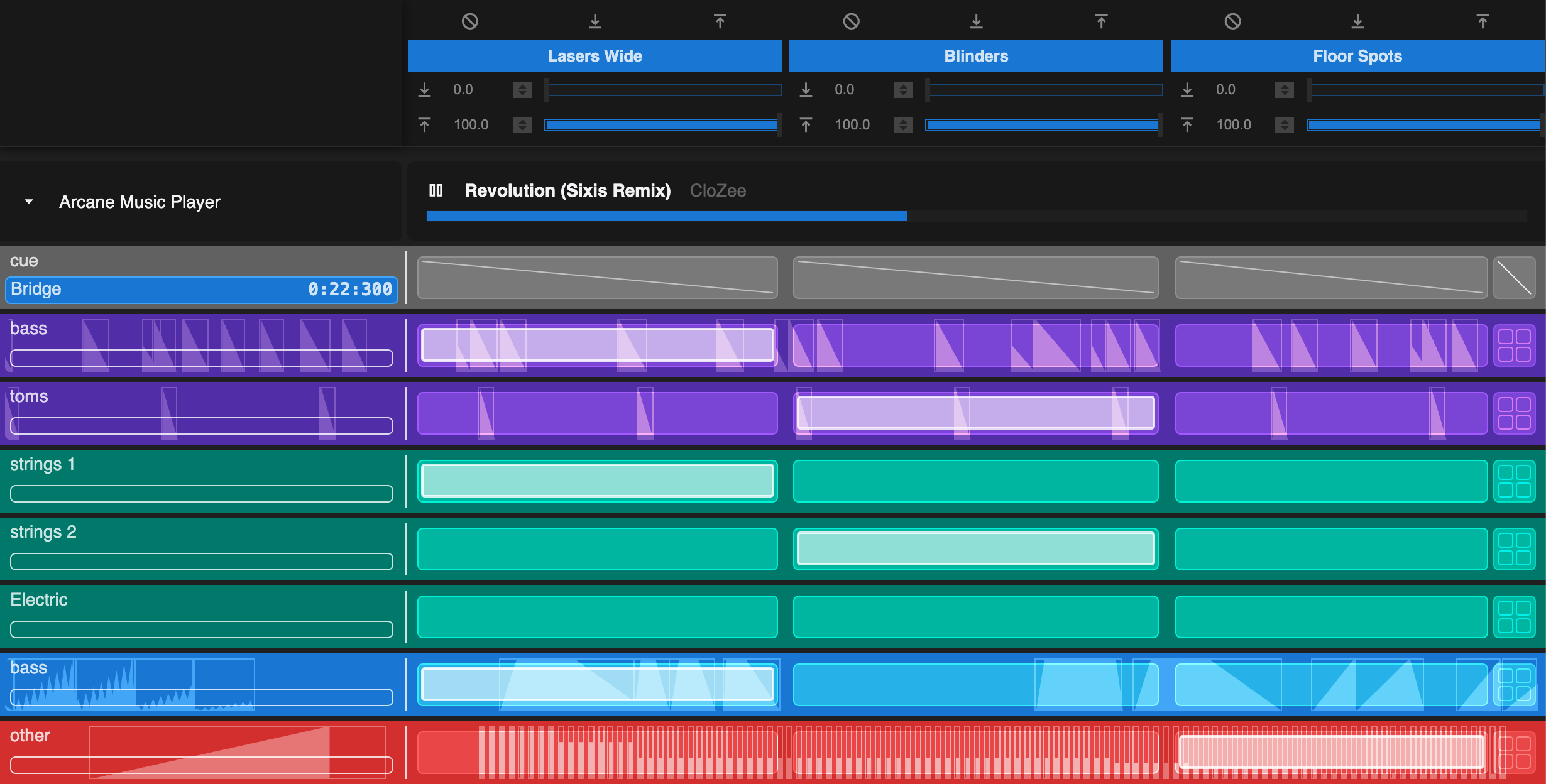
Screenshot of the Spell Casting interface - note this feature is under heavy development and the latest version of the app may differ significantly from what is displayed here.
Understanding the Casting interface
The casting interface is a grid, where:
- Each column represents an Output Group - a collection of outputs that you want to control together.
- Each row represents a layer of a spell that's actively in-use by a timecode being input into Arcane.
- Each cell can be used to link different layers of a spell with different outputs.
Envelopes vs Cues
Output Group Controls
At the top of the screen, you are able to configure a number of parameters and modes for each output group:
-
The top-row of buttons allow you to toggle different modes:
 Blackout:
Temporarily disables all outputs in the group.
Blackout:
Temporarily disables all outputs in the group. Lock-To-Min:
Locks the output group to the minimum configured value.
Lock-To-Min:
Locks the output group to the minimum configured value. Lock-To-Max:
Locks the output group to the maximum configured value.
Lock-To-Max:
Locks the output group to the maximum configured value.
-
Min: The minimum value that
outputs in this group should be set to (except when in blackout mode).
-
Max: The maximum value that
outputs in this group should be set to.
Segments
When an Output Group has outputs attached that are segmented, you will see an additional segments button in the cells for this output group.
In normal operation, linking an output group to a layer will mean that all the outputs associated with that group will be affected together. However when configured with segments, you can choose to group these elements into sub-groups, meaning only some outputs will respond to each active envelope or cues for the given layer as they occur.
For example, you may have a row of lights that you'd like to be able to control individually, or slices in your VJ software you want to control separately, and segments will allow you to introduce cool timed effects or chases.
To understand segments more thoroughly, refer to the Segments documentation page.

Segments button
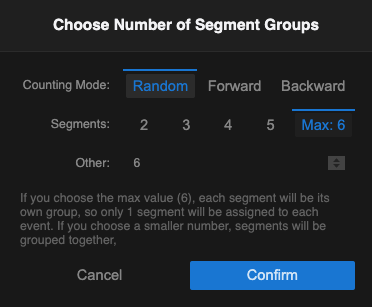
Screenshot of the segments dialog
External Control
Most of the elements on the Spell Casting interface can be controlled externally via MIDI (or via our Command System) for example to connect with MIDI controllers. Arcane also supports MIDI feedback for certain controllers, allowing you to quickly see the state of the casting window directly on your controllers.
Read more about: