Getting started with Timecode Toolbox
Timecode Toolbox is an application that allows you to monitor, generate and convert different timecode signals.
Right now we only support a handful of protocols, but the app is under active development and we will be adding more soon!
Here's what the app looks like:
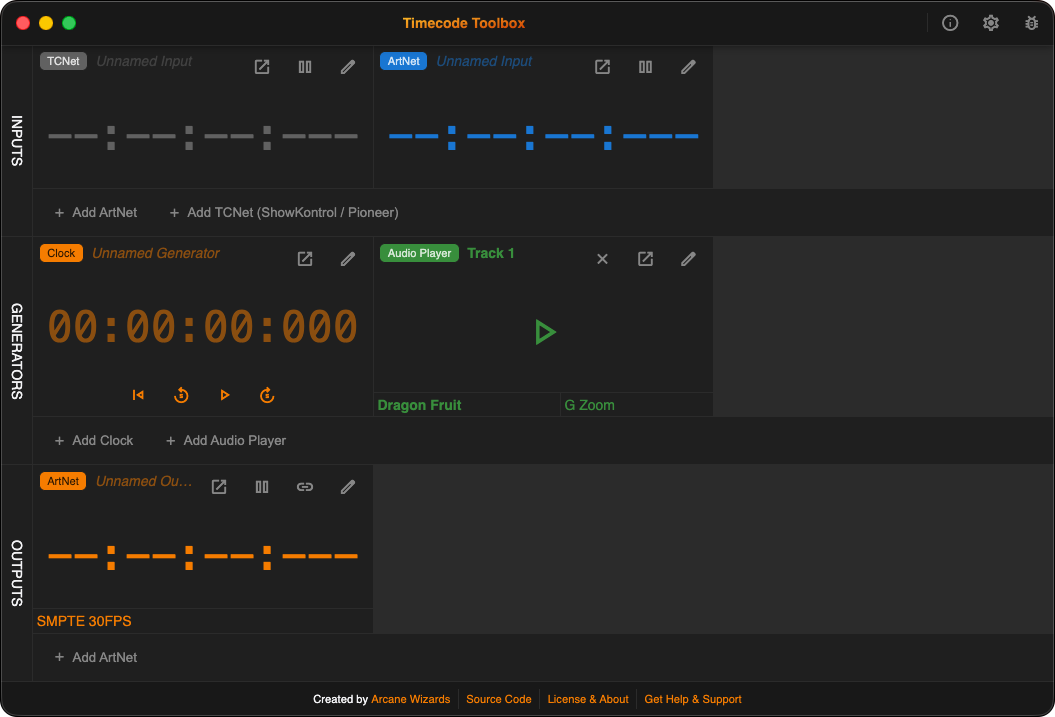
The main window is split into three sections:
Inputs
Inputs are timecode signals that come from an external source that Timecode Toolbox can listen to, for example DJ decks, a DAW, or other audio playback device.
You can add as many different inputs as you like, but some inputs will have restrictions on how many you can have at once, and you will be limited to the capabilities of network protocols.
For example, on some operating systems, you can only have one listener connected to a particular incoming UDP port.
Specifics of the limitations of each protocol can be found on that protocol's page.
Read more about inputs and supported protocols.
Generators
Generators are timecode signals that are generated by Timecode Toolbox itself, and allow you for example to quickly test the timecode input of another app, or load a track alongside a timecode for a live show.
Read more about how to use generators.
Outputs
Outputs are timecode signals that are sent from Timecode Toolbox to other apps or devices, each output can be connected to an individual input or generator, and these can be quickly changed on the fly as needed.
Read more about outputs and supported protocols.
Standard configuration options
Every Input, Generator and Output can be configured with a few standard options. There will also be additional configuration options for each specific type of input, generator or output, which are covered in more detail on the relevant pages.
All these options can be changed at any time,
and can be accessed by clicking the  button on each input, generator or output,
or when you create a new one.
button on each input, generator or output,
or when you create a new one.
Name
The name only serves to help you identify your inputs, generators and outputs, and doesn't affect other functionality of the app in any way.
Inputs, generators and outputs without names will be clearly labelled as "Unnamed", so you can easily identify which ones you haven't named yet.

Color
To make different timecodes visually distinct, you can change the color to any of these standard colors supported by the app.
When no specific color is set, the default interface color will be used, which can be customized in the settings, and is configured on a per-device basis for remotely connected devices.
Delay
A positive or negative delay (in milliseconds) can be applied to any input, generator or output. Negative delays are also supported, and will cause the timecode to run ahead of time, which can be useful for example to compensate for latency in a particular setup.
The delays of outputs are added to the delays of their connected input or generator, so for example:
- An input delay of
500msand an output delay of200mswill result in a total delay of700ms - A generator delay of
-1000msand an output delay of100mswill result in a total delay of-900ms
Pausing Inputs & Outputs
Any input or output can be paused at any time by clicking the  button, and resumed by clicking the
  button.
When an input or output is paused, it will stop sending or receiving any data, and deactivate all of its network connections. This allows for other devices or applications to take over the timecode signal, or listen to ports that would otherwise be occupied by Timecode Toolbox.
Generators do not support this feature as they don't occupy any ports or network connections, and can simply be paused and resumed at any time.
Dedicated windows
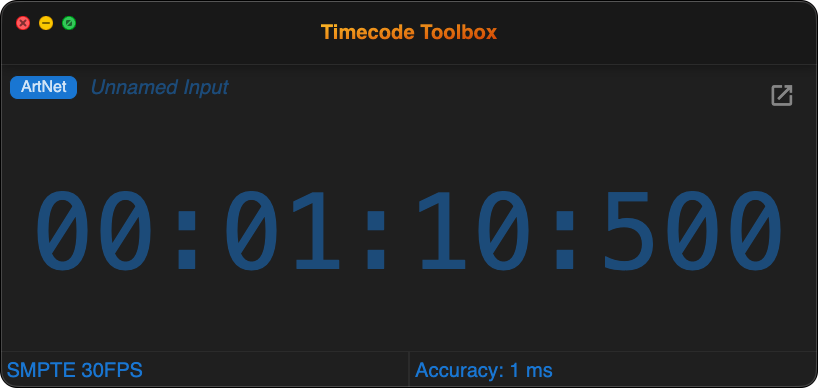
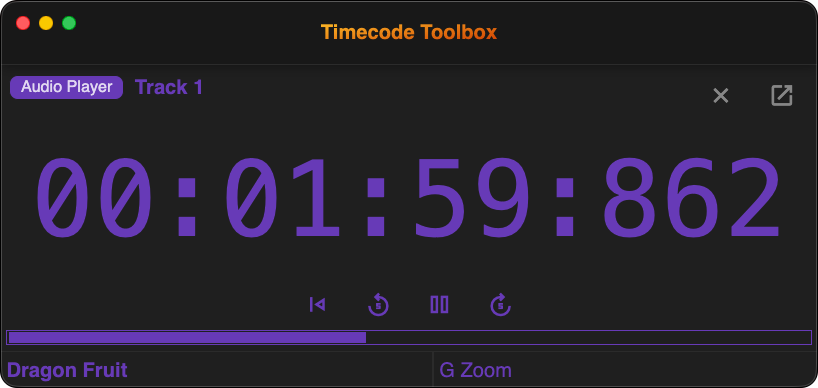
Sometimes it's important to be able to focus on a specific timecode, so Timecode Toolbox allows you to open a dedicated window (or multiple windows) for any specific input, generator or output.
Simply click the  button.
For generators, you'll also be able to control their playback just the same as the main application window.
Customizing the interface
The UI can be customized in a few different ways to suit your needs and preferences.
These options will apply to all of your windows, including any dedicated windows you have open, but they won't affect any remotely connected devices which can independently control their appearance settings.
Colors & Light/Dark Mode

By default, Timecode Toolbox will match your system's light/dark mode settings,
but you can override this by going to the settings  .
.
It's also possible to customize the primary colour of the application, which will be used everywhere except for inputs, generators and outputs that have a custom colors set.
Zooming In + Out
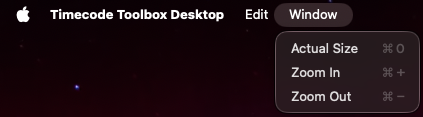
It's possible to make the user interface larger or smaller depending on your preferences and needs (for example to be able to see it from far away).
Simply open the Window menu at the top of the screen, and click the Zoom In or Zoom Out options. It's also possible to use keyboard shortcuts, which will be listed next to the menu options.
(Side-note, this is how we created many of the high-resolution screenshots in this documentation!)
Changing these settings will affect all windows, including any dedicated windows you have open. However this won't affect any remotely connected devices, which can independently control their zoom level by zooming in using the web browser.
Accessing the UI from other devices
It's possible to access the Timecode Toolbox interface from other devices on the same network.
For full instructions, see the dedicated page on connecting remotely.
Changelog, updates & source-code
Timecode Toolbox is open-source, and you can find all our release notes and changelogs on our Releases page on GitHub.
The app will also automatically check for updates by default,
this can be changed in the settings .
You can find the source-code for the app in our open-source monorepo on GitHub