
Accessing the UI from other devices on the same network
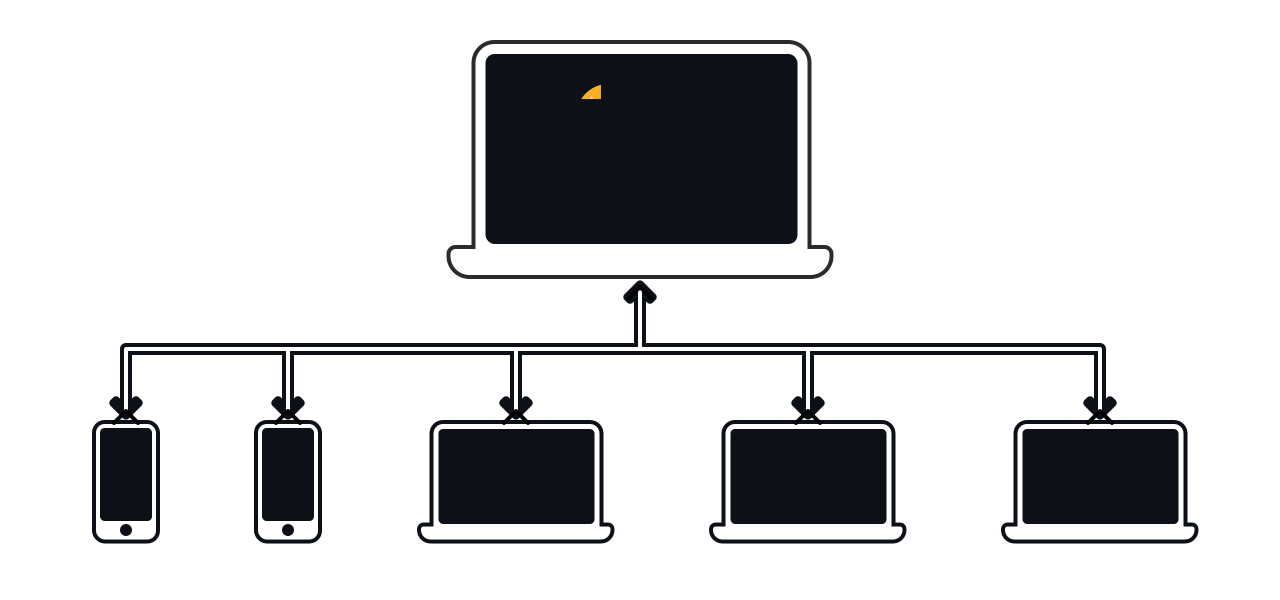
It's possible to allow any device on the same networks as the computer on which you are running Timecode Toolbox to access the UI via a web browser.
Timecode-Toolbox has been designed from the ground-up using our open-source library @arcanejs to allow for this. Remote access uses the same network protocol and code that the desktop app uses for communication between the windows and main app process, and so it provides a seemless experience regardless as to whether you are using the app remotely or locally.
Configuration
The main application port can be configured from the
settings  :
:
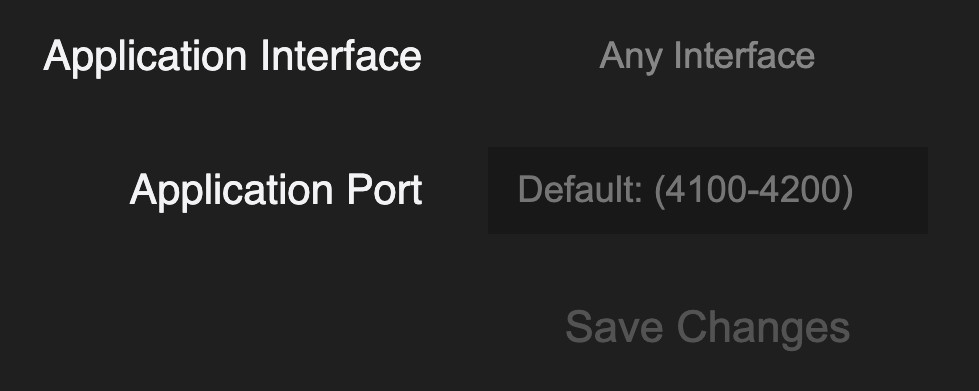
By default, arcane will accept connections from any of the networks your device
is connected to, and will listen to the first available port between
4100 and 4200.
If you want to lock-down access to Arcane,
you can change the Application Interface to a local / loopback address,
which is usually given the IP address 127.0.0.1 on both Windows and MacOS.
You can also configure Arcane to use any port, either:
- Specify a single port that arcane must use, e.g.
4100 - Specify a range of ports that arcane can use, e.g.
4100-4200
Compared to other parts of the application, changes don't take effect immediately; you must first click "Save Changes", at which point the window will reload if you changed this port configuration, as the UI will need to establish a new connection to the main application process.
Hard-coding a specific port
If you want to require that Timecode Toolbox runs with a specific port,
(for example if you are running it via the
CLI),
you can run it with the environment variable PORT
set to the port you want to use, e.g:
PORT=4200 npx @arcanewizards/timecode-toolbox@latest
This will disable the ability for the PORT to be configured from the settings:

Finding out which port Arcane is using
For now, if you have left the port configuration to the default setting, or specified a range of ports, you need to use the debug tools to find out which port Arcane is using.
Near the top of the logs, there will be a message like App listener appListenerConfig started on 0.0.0.0:4100,
which details both the IP address and port that Arcane is using.
If the IP address is 0.0.0.0,
this means that Arcane is listening to all of the networks your device is connected to,
and you can use any of those IP addresses to connect to Arcane from another device.
We currently have an issue open on GitHub to make it easier to find out which port Timecode Toolbox is using.
Device-specific configuration
When you connect to Timecode Toolbox from another device, there are some settings that are managed independently for that device.
Namely, the appearance settings (color and light/dark mode), and the zoom level (which is managed by the web browser's zoom functionality).
Differences in functionality when using from browser vs locally
For the most part, the experience and functionality is identical between the local application, and when accessing via a browser, however there are some key differences to be aware of:
Audio Player Differences
-
Remembering files:
When loading an audio file into an Audio Player generator from a browser (either by drag&drop, or by clicking the button to load), Timecode Toolbox will not remember the file path, and other devices won't be able to play the file.
These audio files will only be loaded temporarily, as long as the browser window is open, and if you close the window, you will have to browse for the file again.
However, if a file is on the same device running Timecode Toolbox, and was loaded via the local application (e.g. by dragging and dropping a file into the main app window), then this file will be remembered and available to play on all devices, including remote ones.
-
Media Playback Controls:
When playing a file from a browser, only some of the native media shortcuts will work (e.g. play/pause from your keyboard). In particular, when if you pause a track, it's unlikely you will be able to resume it, and will have to manually press play again from the UI.
This is part of the browser's security measures to prevent unwanted media playback.